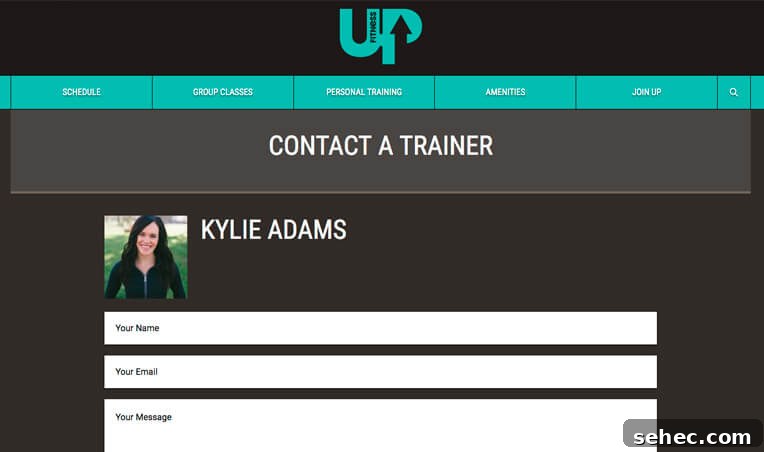
I recently worked on a gym website that included individual profile pages for every trainer. Each profile needed an “Email Me” option, but publishing each trainer’s email address directly on the site was not a good idea. Public email addresses are easy for bots to scrape, which can lead to spam and privacy issues. Instead, I used a WordPress contact form and passed the trainer’s post ID through the URL as a query string. For example, the contact page URL could look like this: /contact-a-trainer?trainer=29.
This same approach works well in many WordPress contact form situations. For example, you could create a dropdown field listing people, departments, locations, authors, or team members. The visible field label could be the person’s name, while the field value could be the related post ID. When the form is submitted, the selected ID can be used to look up the correct email address stored in post meta. This keeps email addresses hidden from visitors while still allowing the message to reach the right recipient.
Another useful example is an “Email the Author” feature. Readers can contact the author of a post without ever seeing the author’s private email address. The form receives an author or person ID, uses that ID to find the correct saved email address, and then dynamically changes the notification recipient before the message is sent.
This tutorial focuses on WPForms and shows how to create a dynamic email notification in WordPress. The same concept can also be adapted to other form plugins if they provide filters or hooks that allow you to modify notification settings before the email is sent. You do not need the premium version of WPForms for this technique. WPForms Lite is enough because the solution relies on WordPress hooks, query variables, hidden fields, and post meta.
The code below can be placed in a core functionality plugin, which is usually the best location for site-specific features that should remain active even if the theme changes. If you prefer, you can also add it to your theme’s functions.php file. Before using it, update the form ID, hidden field ID, and post meta key so they match your own website setup.
'alignleft' ) );
echo '' . $photo . $name . '
';
}
add_action( 'wpforms_frontend_output', 'ea_trainer_on_form', 9 );
/**
* Use the selected trainer's email address as the notification recipient.
*
* @param array $email Email notification settings.
* @param array $fields Submitted form fields.
* @param array $entry Form entry.
* @param array $form_data Form data.
* @return array
*/
function ea_trainer_email_address( $email, $fields, $entry, $form_data ) {
if ( EA_TRAINER_FORM_ID != $form_data['id'] ) {
return $email;
}
$trainer = false;
foreach ( $fields as $field ) {
if ( EA_TRAINER_FIELD_ID == $field['id'] ) {
$trainer = intval( $field['value'] );
}
}
if ( ! $trainer ) {
return $email;
}
$trainer_email = is_email( get_post_meta( $trainer, 'ea_trainer_email', true ) );
if ( ! empty( $trainer_email ) ) {
$email['address'] = array( $trainer_email );
}
return $email;
}
add_filter( 'wpforms_entry_email_atts', 'ea_trainer_email_address', 10, 4 );
The first important setting is the form ID. In this example, the constant EA_TRAINER_FORM_ID is set to 160. That value should be replaced with the actual ID of your WPForms contact form. Defining the form ID as a constant keeps the code easier to maintain. If the form ID changes later, you only need to update it in one place instead of searching through multiple functions.
The second important setting is the hidden field ID. In this example, EA_TRAINER_FIELD_ID is set to 4. In WPForms, create a hidden field that will store the trainer ID from the URL. Set the default value of that hidden field to {query_var key="trainer"}. When someone visits a URL such as /contact-a-trainer?trainer=29, WPForms will place 29 into the hidden field. That value is then available during form processing.
The first function, ea_trainer_on_form(), improves the user experience by showing the selected trainer’s name and photo above the form. It first checks that the current form is the correct WPForms form and that the trainer query variable exists in the URL. If both conditions are true, it sanitizes the value with intval(), retrieves the trainer’s title with get_the_title(), retrieves the trainer’s featured image with get_the_post_thumbnail(), and displays them before the form fields.
This function is hooked to wpforms_frontend_output with a priority of 9. WPForms outputs the form fields on the same hook at the default priority, so using priority 9 places the trainer information immediately above the form. This makes it clear to visitors which trainer they are contacting before they submit their message.
The second function, ea_trainer_email_address(), handles the dynamic notification recipient. It uses the wpforms_entry_email_atts filter, which allows the email notification settings to be modified before WPForms sends the message. The function first confirms that the submitted form is the correct form. It then loops through the submitted fields, finds the hidden trainer ID field, and converts its value to an integer.
After the trainer ID is found, the code looks for an email address stored in the trainer’s post meta. In this example, the meta key is ea_trainer_email. The value is passed through is_email() to confirm that it is a valid email address. If the email address is valid, the notification’s To address is replaced with the trainer’s email address.
Every time the code reads $_GET['trainer'] or the submitted trainer value, it uses intval(). This is important for security because it ensures that only an integer is used as the trainer ID. By combining a hidden WPForms field, a URL query variable, WordPress post meta, and a notification filter, you can build a clean and secure contact form that sends messages to the right person without exposing private email addresses on the front end of your website.